
Author: Amar
I am crazy about new technologies and I have Inquisitive thirst to learn new things. I love to automate things which could increase productivity.
When to use and When not to use BGP
When Not to use BGP
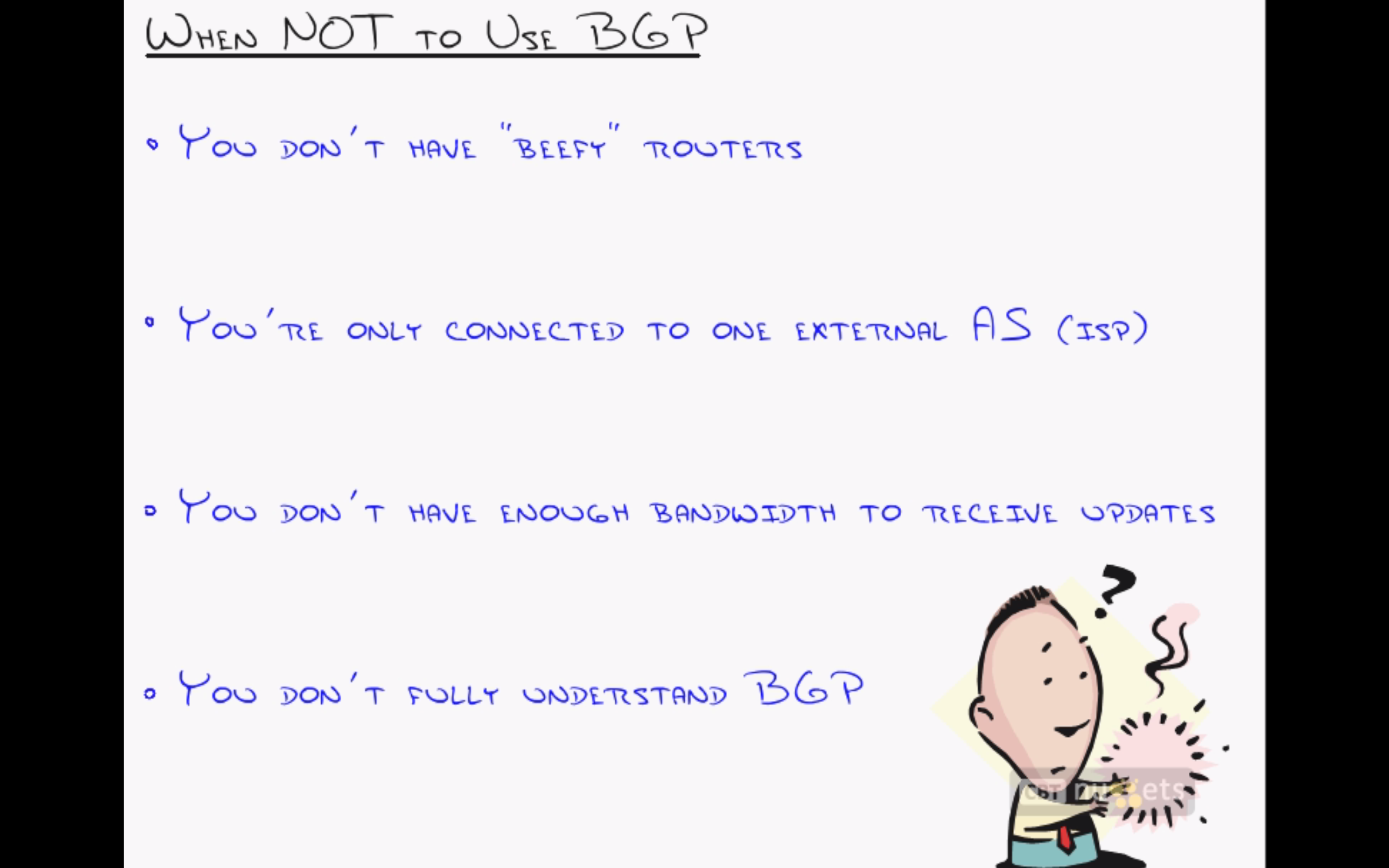
- You don’t have a “beefy” enough router : BGP processing can take scad amount of RAM (critical resource) on your router , typically running FULL BGP table would require you to have atleast 512 MB of free ram.
- Your are connected to only one external AS : Typically if you are connected to only 1 ISP or you have only 1 link out from your AS/Network , you do not want to run BGP , as there are no multiple points to under your network/AS.
When to Use BGP
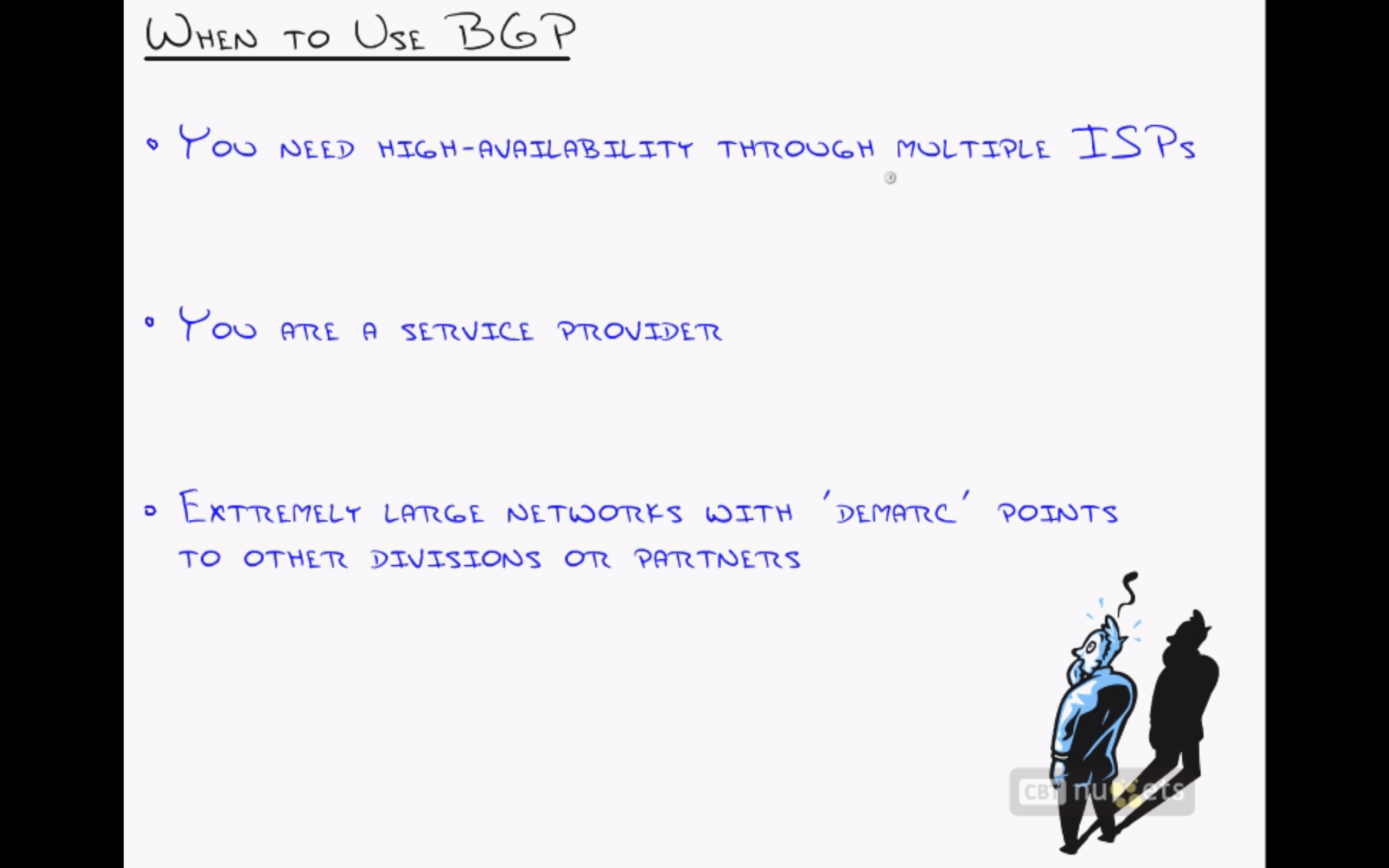
- You need high-availability : You have multiple uplinks to different peers/ISP which might give other multiple paths to access your network/AS
- Offcourse when you are a service provider
- Demarc Points : Suppose you have different subsidiaries and you need to share few of routes when them , it is better to use BGP in this case rather than OSPF,EIGRP
DHCP No gateway found Error
VPCS> ping 192.168.10.1 IP 192.168.20.2/24
No gateway found
Above error means that DHCP server does not have gateway specified , and which was not provided to the client during DHCP IP assignment process.
Solution :
Corp(config)#ip dhcp pool LA_LAN
Corp(dhcp-config)#default-router 192.168.20.1
Corp(dhcp-config)#end
Re-run the DHCP get process on client , and the gateway will be updated automatically
VPCS> ip dhcp
DORA IP 192.168.20.2/24 GW 192.168.20.1
[Solve] Public key error on CentOS 6
Permission denied (publickey,gssapi-keyex,gssapi-with-mic).
If you have suddenly started getting public key error while login via ssh , it means either your authorized_keys permission’s are wrong or either your sshd_config as changed.
If you never disabled password authentication and enabled key authentication , later is the problem.
Solution –
To do that, open the file using the commands below.
vi /etc/ssh/sshd_config
Then comment and change the lines to match the ones below.
Make sure these lines are commented, meaning they have the (#) before it.
# PubkeyAuthentication yes

# AuthorizedKeyFile    .ssh/authorized_keys

# PasswordAuthentication no

# ChallengeResponseAuthentication no
Save the file and reload SSH server by running the commands below.
service sshd reload
This will disable key authentication on your server.
Configuring Interface IP and DHCP Server

Configured all interface IP address with description.
As we have 2 small LAN network’s in SF and LA , why not just use DHCP on CORP router and let SF,LA forward DHCP request to CORP and get IP from here.
DHCP Configuration
Corp:
Corp(config)#ip dhcp excluded-address 192.168.10.1
Corp(config)#ip dhcp excluded-address 192.168.20.1
Corp(config)#ip dhcp pool SF_LAN
Corp(dhcp-config)#network 192.168.10.0 255.255.255.0Corp(dhcp-config)#default-router 192.168.10.1
Corp(dhcp-config)#dns-server 4.4.4.4
Corp(dhcp-config)#exit
Corp(config)#ip dhcp pool LA_LAN
Corp(dhcp-config)#network 192.168.20.0 255.255.255.0Corp(dhcp-config)#default-router 192.168.20.1
Corp(dhcp-config)#dns-server 4.4.4.4
SF:
SF(config)#int ethernet 2/0
SF(config-if)#ip helper-address 172.16.10.1
LA:
LA(config)#int ethernet 2/0
LA(config-if)#ip helper-address 172.16.10.5
After above configuration PC1 can not receive IP address , because there is no routing enabled in this network
VPCS> ip dhcp
DDD
Can’t find dhcp server
Basic Network Topology
Above is my basic topology I will be using to practise configuring various routing protocols , DHCP server , telnet , console etc.
Hardware/Software Used :
- Google cloud VM instance ( free for 60 days )
- GNS3 1.3.7 cloud server + GNS3 on my macbook
- All routers are C7200-9ks images.
Enable Telnet on CISCO switch
To enable telnet on cisco switch , you need to configure following things :
- line vty 0 4
- password for login ( without pass you can not enable telnet)
Commands:
ESW2#configure t
Enter configuration commands, one per line. End with CNTL/Z.
ESW2(config)#line vty 0 4
ESW2(config-line)#password cisco
ESW2(config-line)#login
ESW2(config-line)#end
NetScreen Firewall Disable Console Page Length
Description :
Following command is needed to display whole firewall configuration without the need of pressing any key after certain lines.
Command :
set console page 0
Tested on :
ISG 2000 – 6.2.0r8.0 (OS)
How to Use Firewall Filters on Juniper EX Series
Firewall Filters
The Junos OS stateless firewall filters support a rich set of packet-matching criteria that you can use to match on specific traffic and perform specific actions, such as forwarding or dropping packets that match the criteria you specify. You can configure firewall filters to protect the local router or to protect another device that is either directly or indirectly connected to the local router. For example, you can use the filters to restrict the local packets that pass from the router’s physical interfaces to the Routing Engine. Such filters are useful in protecting the IP services that run on the Routing Engine, such as Telnet, SSH, and BGP, from denial-of-service attacks.
Service Filters
A service filter defines packet-filtering (a set of match conditions and a set of actions) for IPv4 or IPv6 traffic. You can apply a service filter to the inbound or outbound traffic at an adaptive services interface to perform packet filtering on traffic before it is accepted for service processing. You can also apply a service filter to the traffic that is returning to the services interface after service processing to perform postservice processing.
Service filters filter IPv4 and IPv6 traffic only and can be applied to logical interfaces on Adaptive Services PICs, MultiServices PICs, and MultiServices DPCs only. Service filters are not supported on J Series devices and Branch SRX devices.
Simple Filters
Simple filters are supported on Gigabit Ethernet intelligent queuing (IQ2) and Enhanced Queuing Dense Port Concentrator (EQ DPC) interfaces only. Unlike standard filters, simple filters support IPv4 traffic only and have a number of restrictions. For example, you cannot configure a terminating action for a simple filter. Simple filters always accept packets. Also, simple filters can be applied only as input filters. They are not supported on outbound traffic. Simple filters are recommended for metropolitan Ethernet applications.
Stateless Firewall Filter Components(EX Series)
Protocol Family
Under the firewall statement, you can specify the protocol family for which you want to filter traffic.
family ethernet-switching (for EX Series switches)
Filter Type
Under the family family-name statement, you can specify the type and name of the filter you want to configure.
Standard Firewall Filter – filter filter-name
Filters the following traffic types:
- Protocol independent
- IPv4
- IPv6
- MPLS
- MPLS-tagged IPv4
- MPLS-tagged IPv6
- VPLS
- Layer 2 CCC
- Layer 2 bridging (MX Series routers and EX Series switches only)
Terms
Under the filter, service-filter, or simple-filter statement, you must configure at least one firewall filter term. A term is a named structure in which match conditions and actions are defined. Within a firewall filter, you must configure a unique name for each term.
All stateless firewall filters contain one or more terms, and each term consists of two components—match conditions and actions.
Match Conditions
A firewall filter term must contain at least one packet-filtering criteria, called a match condition, to specify the field or value that a packet must contain in order to be considered a match for the firewall filter term. For a match to occur, the packet must match all the conditions in the term. If a packet matches a firewall filter term, the router (or switch) takes the configured action on the packet.
Actions
The actions specified in a firewall filter term define the actions to take for any packet that matches the conditions specified in the term.
Actions that are configured within a single term are all taken on traffic that matches the conditions configured.
Default : accept
Example
set firewall family ethernet-switching filter ACL-12 term SSH from source-address 192.168.100.1/32
set firewall family ethernet-switching filter ACL-12 term SSH from destination-address 100.100.100.0/24
set firewall family ethernet-switching filter ACL-12 term SSH from protocol tcp
set firewall family ethernet-switching filter ACL-12 term SSH from destination-port 22
set firewall family ethernet-switching filter ACL-12 term SSH then accept
Applying filter to physical interface
interface : ge-0/0/12
filter-name : ACL-12
set interfaces ge-0/0/12 unit 0 family ethernet-switching filter input ACL-12
Installing and using virtualenv for Python 2.7.9
Installing virtualenv
In order to install virtualenv, we are going to call in pip for help. We will install it as a globally available package for the Python interpreter to run.
The simplest method is using pip to search, download and install. This might not provide you the latest stable version.
Downloading virtualenv using pip:
 # Example: [sudo] pip install virtualenv
 pip install virtualenv
Creating / Initiating a virtual environment (virtualenv)
Creating an environment using the same interpreter used to run it:
 # Example: virtualenv [folder (env.) name]
 # Let's create an environment called *my_app*
 virtualenv my_app
Creating an environment with a custom Python-2.7.9 interpreter:
 # Example: virtualenv --python=[loc/to/python/] [env. name]
 virtualenv --python=/usr/local/bin/python2.7 my_app
Activating a virtual environment
 # Example: source [env. name]/bin/activate
 # Let's activate the Python environment we just created
 source my_app/bin/activate